

Theme
Create your first app
You need a public website URL to create an app. You can add an app from the My applications page.
Website URL requirements
Before you start, make sure that:
- the website is accessible without a corporate network connection or VPN;
- the URL contains a valid domain, such as
https://example.com; - the website displays correctly on a mobile device;
- HTTPS works without certificate errors;
- the main pages are accessible through regular links.
If you enter a domain without https://, SiteCargo will add the protocol automatically. However, it is best to use your website's full canonical URL.
Create the app
- Open My applications.
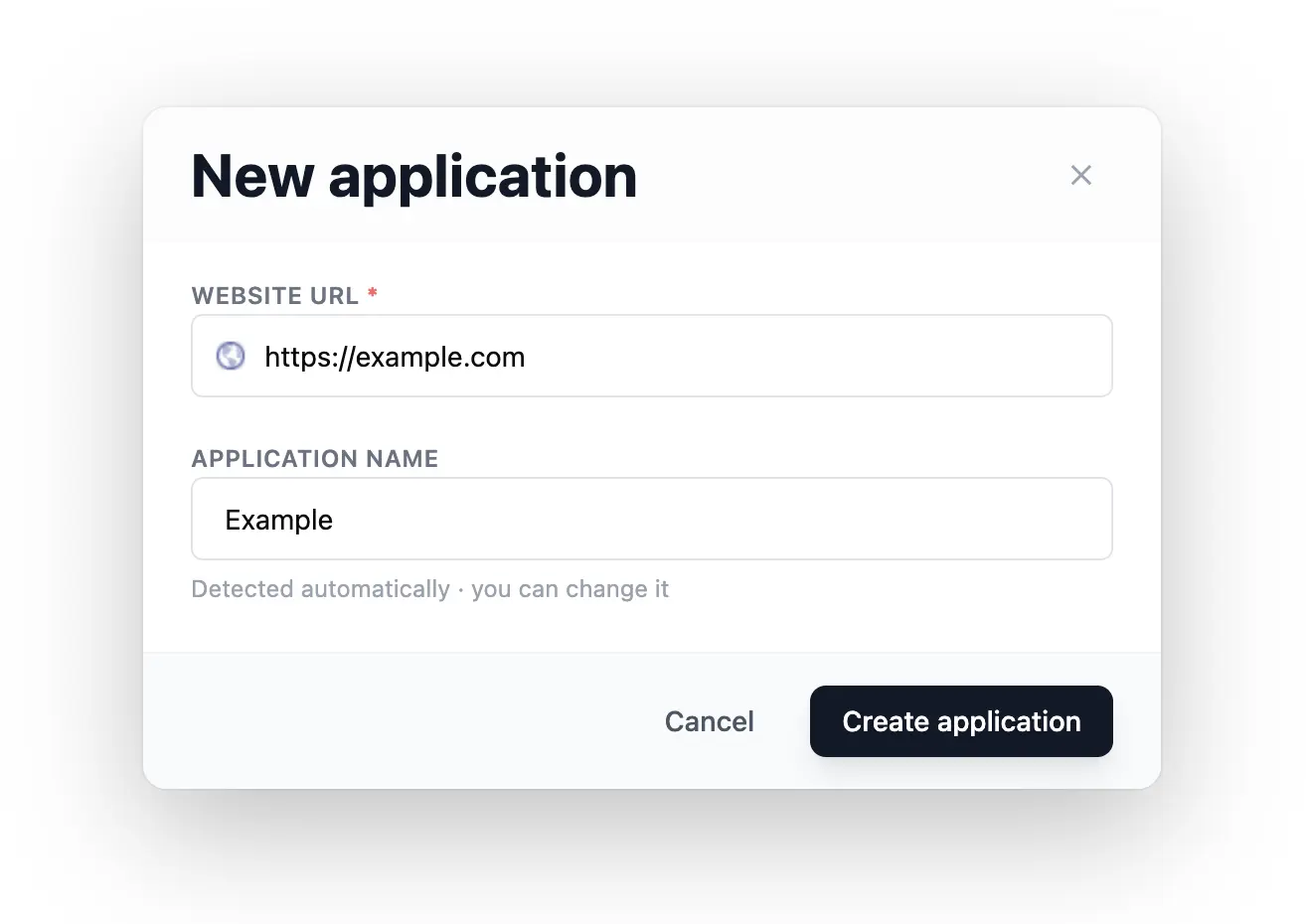
- Click the New application card.
- Enter your website's full URL in the Website URL field.
- Check the automatically suggested app name.
- Change the name if needed.
- Click Create application.
What happens after you click Create application
SiteCargo will:
- create an app with the Draft status;
- analyze the website's available pages;
- create an initial menu if it finds at least two suitable sections;
- open the app builder.
Check the result
Once the process is complete, you should see:
- the app name at the top of the builder;
- the Draft status;
- the connected domain;
- the main settings form;
- the mobile preview, either on the right or opened with View preview on smaller screens.
Troubleshooting
The Create application button is disabled
Check the URL: it must include a full domain name containing a dot. For example, example.com is valid, but example is not.
The website shows a certificate error
Fix the HTTPS configuration on your website. The mobile app should not load pages with an invalid certificate.
The app was created with the wrong name
You can change the name in the builder before releasing the app.
Next step
After connecting your website, configure the app's appearance in the App builder section.